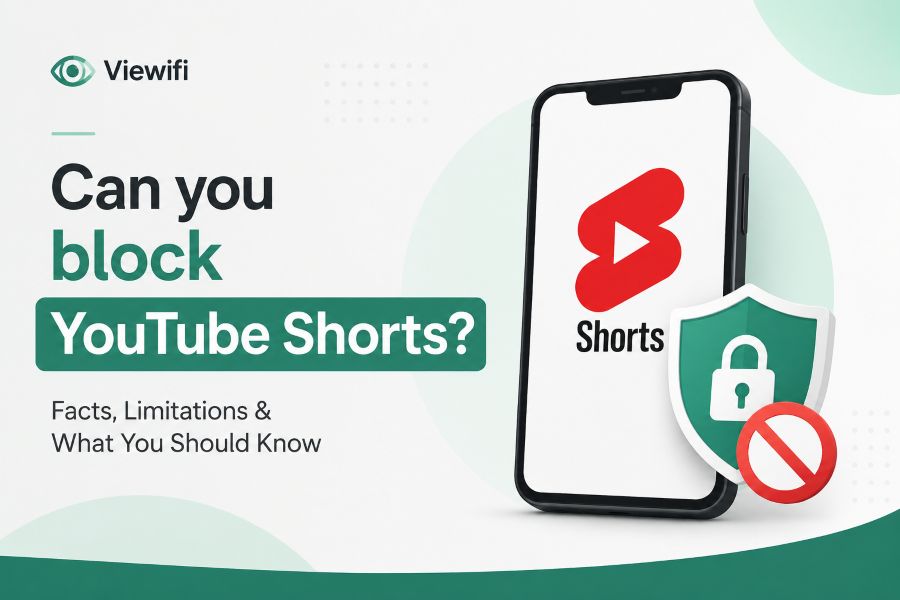
Can you block YouTube Shorts if the short-video feed keeps pulling you away from longer videos, learning content, or your child’s screen-time limits? Yes, you can reduce or block YouTube Shorts in several practical ways, but the best method depends on your device, account type, and how strict you want the block to be.
YouTube now gives users more control than before, but browser tools, URL filters, app limits, and parental controls can still help when the built-in options are not enough.
Can You Block YouTube Shorts With YouTube’s Own Settings?
You can block YouTube Shorts more easily now because YouTube has added a Shorts feed limit inside the app. This option is useful if your main goal is to stop the endless scrolling loop without removing YouTube completely. It is especially helpful for people who still want access to tutorials, reviews, music, educational channels, and long-form videos.
The setting usually appears inside the YouTube app under your profile area, settings, and time-management options. From there, you can choose a Shorts feed limit, and some users can set it to 0 minutes. When the limit is active, YouTube adds friction before you can keep watching Shorts, which makes mindless scrolling less automatic.
This matters because Shorts are not just another video format; they are designed for rapid swiping, quick rewards, and repeated viewing. If you use YouTube for research, entertainment, or study, you may want the platform without the short-form feed taking over your attention. Public browsing tools can also support cleaner viewing habits, and a tool that makes it possible to view public content across platforms can help users view public content across Instagram, YouTube, and other platforms without treating every visit like an invitation to scroll endlessly.
The official setting is the simplest starting point, but it is not always a perfect shutdown switch. Shorts may still appear through search results, subscriptions, shared links, or direct Shorts URLs. That is why the strongest approach is to combine YouTube’s own settings with device controls or browser-level blocking.
Why YouTube Shorts Are So Hard To Remove Completely
YouTube Shorts are hard to remove completely because they are built into the YouTube experience, not added as a separate app. The Shorts tab, homepage shelves, search results, channel pages, and suggested videos can all point users back to short-form videos. This makes blocking Shorts more complicated than uninstalling a single feature.
On desktop, users often have more control because browser extensions, content filters, and URL blockers can target specific parts of YouTube. On mobile, the official app gives fewer customization options because YouTube controls the layout and navigation. That is why many strict blocking methods work better in a browser than inside the YouTube app.
The problem is not only access; it is habit design. Shorts use an infinite-feed structure, meaning you do not need to choose a new video after each clip. That lowers the effort required to keep watching and raises the chance that a quick break becomes a long session.
If you are trying to improve focus, the goal should be to remove the easiest path to the Shorts feed. You do not always need to block every possible Shorts link to make a major difference. Reducing visibility, blocking the Shorts URL, hiding thumbnails, and setting time limits can work together to make YouTube feel less distracting.
How To Block YouTube Shorts On iPhone
If you use an iPhone, start with the YouTube app’s time-management settings. Open YouTube, tap your profile or You tab, go to settings, and look for the Shorts feed limit. If the zero-minute option is available on your account, choose it to reduce or disable the main Shorts feed.
You can also use iPhone Screen Time to indirectly make Shorts harder to access. Screen Time cannot always block only Shorts inside the YouTube app, but it can limit YouTube usage, restrict app time, or block YouTube during work and study hours. This is useful if the real problem is not Shorts alone but repeated YouTube checking throughout the day.
Another option is to stop using the YouTube app and watch YouTube through a browser instead. Safari content blockers may help with some web elements, although they are not always as flexible as desktop browser extensions. If you want stricter control, using a browser that supports stronger content filtering can make Shorts easier to hide.
Parents can combine YouTube settings with Apple Family controls. This helps when a child needs access to educational videos but should not spend time in a short-video feed. The best setup is usually layered: limit the app, supervise the account, and use YouTube’s Shorts limit when available.
How To Block YouTube Shorts On Android
Android users can also start inside the YouTube app’s time-management section. Open YouTube, tap your profile or You tab, enter settings, and look for the Shorts feed limit. If zero minutes is available, set it there before trying more advanced methods.
Android gives you a few extra paths because you can often manage apps, browsers, DNS settings, and device-level restrictions more freely. You can use Digital Wellbeing to limit YouTube time, pause the app during focus sessions, or schedule downtime. These options do not always remove Shorts only, but they reduce the amount of time Shorts can steal.
For stricter blocking, consider using YouTube in a mobile browser instead of the app. Browser-based use can make it easier to apply filters that hide Shorts sections or block Shorts URLs. This is useful because the official app is designed to keep every major YouTube feature available.
You can also disable YouTube app notifications if they pull you back into the platform. Shorts become more powerful when paired with alerts, recommendations, and idle browsing. Removing notifications gives you one less doorway into short-form viewing.
How To Block YouTube Shorts On Desktop
Desktop users usually have the best blocking options because browsers provide more control. You can block Shorts URLs, hide Shorts shelves, remove the Shorts button, or use extensions that change how YouTube appears. This makes desktop the easiest place to build a cleaner YouTube experience.
A simple method is to block the path that includes “shorts” in the YouTube URL. Because Shorts videos often use a predictable URL structure, a website blocker can stop those pages from opening. This method is not perfect, but it is direct and easy to understand.
Browser extensions can also hide Shorts from the homepage, subscriptions page, search results, and sidebar. Some extensions are built specifically to clean up YouTube and reduce distraction. Before installing one, check permissions carefully because browser extensions can sometimes request broad access to your browsing activity.
If you use Chrome, Edge, Firefox, or Brave, the exact setup will vary. Brave is especially useful because it includes content-filtering options that can target YouTube Shorts. Desktop blocking works best when you combine URL rules with visual cleanup, because hiding the temptation is often as important as blocking the page.
Best Method For Parents Who Want To Block Shorts
Parents usually need a stricter setup than casual users because children may ignore reminders or find alternate paths. The first step is to use supervised accounts where possible. Supervised YouTube settings give parents more control than a regular adult account.
The Shorts feed limit can help, especially if the child’s account allows a zero-minute setting. However, you should not rely on one setting alone if the child is determined to keep watching Shorts. Device-level controls, app limits, and restricted browsing can close more gaps.
YouTube Kids may feel like the obvious answer, but it may not always offer the exact Shorts control parents want. Some families prefer a supervised YouTube account because it gives more access to helpful content while still allowing parental limits. The right choice depends on the child’s age, maturity, and viewing habits.
Parents should also explain the reason for the limit. A child who understands that Shorts are being reduced to protect sleep, homework, attention, or mood may respond better than a child who only sees the rule as punishment. Clear rules work better when they are paired with a replacement, such as approved channels or scheduled viewing time.
Can You Block YouTube Shorts Without Blocking YouTube?
Yes, you can block YouTube Shorts without blocking all of YouTube, but you need the right method. The official Shorts feed limit is the cleanest option because it targets Shorts rather than the whole platform. Browser filters and URL blockers can also target Shorts while leaving long-form videos available.
This is important because YouTube is not only an entertainment app. Many people use it for cooking lessons, coding tutorials, language learning, product research, repairs, exercise, and school support. Blocking the whole platform can create unnecessary friction if your real problem is only the Shorts feed.
A balanced setup might keep YouTube available during certain hours while blocking or hiding Shorts all day. This lets you watch useful long-form videos without falling into a fast-scroll pattern. If you work from home or study online, this kind of separation can protect your attention without feeling extreme.
The best question is not only “can I block it?” but “where do Shorts enter my day?” If Shorts mostly distract you at night, schedule blocking after dinner. If they interrupt work, block them during focus hours and keep YouTube available during breaks.
Why The Zero-Minute Shorts Limit Matters
The zero-minute Shorts limit matters because it changes the conversation from “manage Shorts better” to “turn the feed off.” Earlier workarounds often felt incomplete because users had to hide buttons, install extensions, or limit the entire app. A built-in zero-minute option gives regular users a much simpler starting point.
Still, zero minutes should be understood as a feed limit, not a magical deletion of all Shorts content. A shared Shorts link, search result, or channel page may still expose you to short videos in some cases. The setting is powerful because it removes the most obvious feed path, but it may not close every door.
This distinction is important for honest expectations. If you expect YouTube to erase Shorts everywhere, you may feel disappointed. If you expect the setting to reduce impulse viewing, it can be very effective.
A zero-minute limit also helps people who do not want to depend on willpower. Good digital habits are easier when the environment supports them. When the feed is harder to open, you are less likely to keep swiping out of boredom.
Browser Workarounds That Actually Help
Browser workarounds help because YouTube’s website is easier to customize than the mobile app. When you use YouTube in a browser, you can often block specific page paths, remove page elements, or install tools that hide distracting sections. This gives you more control over what you see.
One useful workaround is to block Shorts URLs directly. If a URL contains the Shorts path, a blocker can prevent the page from loading. This works well when you are trying to stop direct access rather than simply reduce recommendations.
Another method is to hide Shorts thumbnails and shelves. This does not always block Shorts completely, but it makes them less visible and less tempting. Since thumbnails drive curiosity, removing them can reduce accidental clicks.
You can also use a browser with stronger built-in filtering. Some browsers let you activate content filters without installing many extra tools. This is a cleaner option for users who want fewer extensions and a simpler setup.
What To Do If Shorts Still Appear
If Shorts still appear after you set a limit, do not assume the setting failed. YouTube may still show Shorts in places outside the main Shorts feed, depending on your device, app version, and account settings. The solution is to identify where Shorts are still appearing.
If they appear on the homepage, check whether the Shorts feed limit is active and whether your app is updated. If they appear through search, consider using browser filters or avoiding short-video search results. If they appear through shared links, a URL blocker may help more than the YouTube setting.
If your child keeps reaching Shorts, review both YouTube supervision and device-level controls. A child may access Shorts through a browser even if the app is limited. That is why parental controls should cover apps, browsers, and screen time together.
It also helps to remove shortcuts that make YouTube too easy to open. Delete the app from the home screen, turn off notifications, and use scheduled access. Small barriers can make a big difference because Shorts thrive on instant access.
Common Mistakes When Trying To Block Shorts
One common mistake is relying on only one setting. YouTube’s Shorts feed limit is helpful, but it may not block every Shorts entry point. You get better results when you combine YouTube settings with device limits or browser filters.
Another mistake is blocking all of YouTube when you only need to block Shorts. This can backfire because you may remove useful videos and later disable the restriction out of frustration. A more targeted setup is easier to maintain.
Some users also forget to update the YouTube app. If you do not see the Shorts feed limit, your account may not have the feature yet, or your app may need an update. Checking both is faster than assuming the option does not exist.
Parents sometimes set a rule without checking whether it works on every device. A child may have access through a tablet, school laptop, browser, or smart TV. Good blocking requires checking the full viewing environment, not just one phone.
A Practical Setup For Focused YouTube Use
Start by deciding what you still want from YouTube. If you use it for learning, repairs, reviews, workouts, or music, keep those uses available while blocking the short-form feed. This helps you avoid an all-or-nothing setup.
Next, set the Shorts feed limit to zero if your account supports it. Then remove YouTube notifications and move the app away from your home screen. These small changes reduce the number of times YouTube asks for your attention.
On desktop, add browser filters that hide Shorts shelves and block Shorts URLs. On mobile, consider using YouTube in a browser instead of the app if you need stricter control. This setup gives you flexibility without relying only on self-discipline.
Finally, schedule YouTube use around your real goals. For example, allow YouTube during lunch or after work, but block it during deep-work hours. A planned schedule is easier to follow than a vague promise to “scroll less.”
Conclusion
Can you block YouTube Shorts in a way that truly protects your attention? Yes, you can, but the best result usually comes from using more than one method. Start with YouTube’s Shorts feed limit, set it to zero if the option is available, and then add browser filters, device limits, or parental controls when needed. If you want a lighter solution, hiding Shorts from your main feed may be enough.
If you want stronger protection, block Shorts URLs and avoid the YouTube app where possible. The real goal is not to make YouTube useless; it is to keep the helpful parts while removing the endless short-video loop. With the right setup, you can use YouTube more intentionally and stop Shorts from deciding how your time gets spent.